
Quotations
Create quotations for customers, track them from draft to completion, and download a PDF.
 12
12View the quotation list
- Open Quotations from the sidebar; each row shows the Quotation No. (with the creation date underneath), Status, Customer (with the order type underneath), Delivery, Total, and Valid until (shown as "—" for Completed and Voided quotations). Sorting by status follows the workflow: Draft, Handed over, Confirmed, Completed, Voided. On a phone each card is titled with the customer name, and the delivery time is shown too.
- The second tab is Awaiting payment: the quotations a customer still owes money on, meaning Confirmed ones whose deposit or balance isn't fully paid and Completed ones that aren't fully paid. The number on the tab is how many there are, and the first line inside the tab gives the total owed (while you search, it covers the matching quotations, with the store-wide figures in brackets). Outstanding comes before the total, and each row has Record payment so you can collect without opening the quotation. By default the oldest delivery comes first, so whoever has owed you longest is at the top; under the delivery time it says "N days ago", turning into a red "N days overdue" after 30 days. On the other tabs, Confirmed and Completed quotations that aren't fully paid show the amount owed under their status, with the same Record payment button; voided quotations whose payments haven't been refunded show "To refund …".
- After the divider, filter by status: Draft, Handed over, Confirmed, Completed, Voided; voided rows are dimmed. A Handed over quotation past its validity date gets a red Expired badge; a draft hasn't reached the customer yet, so it only says "Expired" in grey with an amber dot (you're asked about extending it before sending). Pickup and shipping orders are labelled under the customer name; delivery, the default, isn't. Switch tabs with the mouse or the left and right arrow keys.
- The search box on the right finds quotation numbers, customer names or phone numbers across the whole store, not just the page on screen, but only within the current tab; if nothing turns up, press Search all quotations. Press / to jump to it. The tab and search are kept in the address, so opening a quotation and pressing Back returns you to the same tab.
- Click any row to open its detail page. The copy icon at the end of each row starts a new quotation based on that one.
- Click a column header (or Tab to it and press Enter) to sort.
- Export Excel in the ⋮ menu (top right) exports exactly what's on screen (tab and search included).
Create a quotation
- Click New quotation (top right) to open the create page. If you came here with Copy, the page says which quotation it was copied from; the delivery time isn't copied, so pick a new one.
- Customer info: start typing the Customer name (required) and matching existing customers are listed. Pick one (or type the full name) to fill in the phone, tax ID and address, and the form shows "Filled in from existing customer". Anything you already typed is kept. If there is no match, just keep typing and the customer is created with the quotation. If you change a filled-in name (say, adding a branch name), the phone, tax ID and address stay, and a note under the name says they still belong to the old customer and a new one will be created; press Clear these three if they don't apply. Contacts are not entered here.
- Order info: choose the Order type and Delivery time (called Pickup time when the order type is pickup), and enter this quotation's Contact person and Contact phone (they may differ each time and are not copied from the customer). If you picked a date but the time is still 00:00, a hint under the field reminds you to add the time.
- Items: items sit in a table. Add item below the table opens an edit card at the bottom; typing in the name field suggests products, and choosing one fills in the unit price. Enter in the name moves to the quantity, and quantity and unit price select their contents when focused, so you can type the new number straight away. Unit prices can have decimals (such as 12.5). Press Done to collapse it back into a row, click any row later to edit it again, and use Move up / Move down in the edit card to reorder. Deleted an item by mistake? Press Undo on the notice. At least one item is required.
- Note: one remark per line. Use Move up / Move down on the right of each line to reorder and ✕ to delete; Enter inside a line starts a new line below it. The buttons underneath (delivery date, day of week, delivery time, valid until, store name and so on) insert at the cursor and appear as labels such as [Delivery date]; they are replaced with the real values when the quotation is produced. If a line uses a field that hasn't been filled in (for example no delivery time yet), that whole line is left off the quotation instead of printing a half-empty sentence. The delivery time, delivery address and valid-until date are already printed in the information block at the top of the quotation, so remarks only need your own terms (packaging, deposit rules and so on). The remarks a new quotation starts with are set under Quotation defaults in Settings → Store Management.
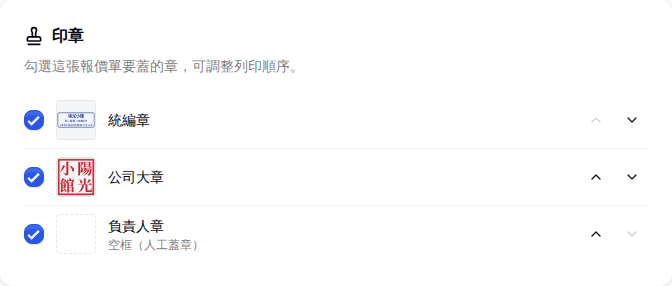
- Seals: all store seals are pre-selected; untick any, or use Move up / Move down to set this quotation's stamping order (seals are created and uploaded in Settings → Store Management; see that page's guide).
- Delivery address, Quotation language, Prices include tax?, Tax rate %, Valid days (default 7), Discount, the Internal note and Foreign-currency payment are under More details (optional) at the bottom. The internal note is never printed on the PDF.
- The discount comes off first, then tax is worked out: tax is charged on the actual selling price, calculated once for the whole quotation and rounded to the dollar.
- Prices exclude tax (common for business customers): subtotal − discount = net amount; tax = net amount × rate; total = net amount + tax. Example: subtotal 10,000, discount 1,000, 5% → net 9,000, tax 450, total 9,450.
- Prices include tax (consumer pricing): subtotal − discount = total, and the tax is worked back out of the total. Example: subtotal 10,500, discount 1,000 → total 9,500, of which net 9,048 and tax 452.
- When there is tax, the quotation always shows the net amount (excl. tax) so it matches the invoice (net × 5% = tax). With a 0% rate the tax line only says "Included in prices" or "Added separately", and the total reads "Total (incl. tax)" or "Total (excl. tax)" to match. If you charge tax separately and will collect it, enter the rate so the total includes it; with a 0% rate, a customer who pays the tax-inclusive price pays more than the total, and the payment is refused.
- The tax rate is 0 to 100 with up to 3 decimal places (e.g. 8.875% in New York City). A quotation has one tax rate, so put items taxed at different rates on separate quotations, and the discount can't exceed the subtotal. New quotations start with the store's default tax setting and language.
- On a wide screen the finished quotation is previewed live on the right. On narrower screens press Preview at the bottom, and Back to form or Esc to return. If the page is too small to read on a phone, press Actual size at the top right of the preview and scroll around.
- The main button at the far right of the bottom bar is Save as draft: StoreOps never sends anything to the customer, so you usually save a draft, send the PDF yourself, and then mark it as handed over. If the customer already agreed in person, or you gave it to them another way, open Create as… next to it and pick Create as confirmed or Create as handed over (each one says when to use it). You'll land on the new quotation's detail page. Ctrl+S (⌘S on a Mac) does the same as Save as draft, or Save Changes when editing an existing quotation.
- When you create a quotation as Handed over or Confirmed with no delivery time yet, or with a remark that uses a field that's still empty, This quotation is missing details appears first: Fill it in jumps to that field, Continue anyway creates it as is (those lines won't be printed).
Submitting without a customer name, without any items, with an item that has no name, or with a half-filled foreign-currency payment is blocked. Every problem is marked at once, the page scrolls to the first field to fix, and the bottom bar shows how many are left; click it to jump there again.
A new quotation is autosaved in this device's browser, and the bottom bar says Autosaved next to the total. If you reload, leave the page, close the tab, or your phone closes the app, coming back to the create page offers Continue and shows the customer and total. The autosave is cleared when the quotation is created, when you discard it, or when you sign out, and anything older than 12 hours is cleared automatically, so a shared shop device doesn't keep customer details around. A new quotation and each Copy to a new quotation keep separate autosaves, so copying an order for a regular after an interruption won't overwrite another quotation you haven't created yet. Editing an existing quotation works the same way: if you're interrupted mid-edit, coming back to that quotation asks whether to pick up where you left off.
Send & change status
On the quotation detail page, the top right shows the next step for the current status as the single solid button (on a phone every action sits at the bottom of the screen, within thumb reach: the top row holds secondary actions such as Edit and PDF Preview, the bottom row the main button, and the header keeps only ⋮). A notice confirms the new status after each change:
- Draft → the main button is PDF preview: download the quotation and send it to the customer first. Once you have, press Mark as handed over next to it (StoreOps doesn't send anything; this only records it). For a regular who ordered by phone, Customer confirmed is in the ⋮ menu. If no delivery time is set yet, or a remark uses a field that's still empty, you're asked whether to Fill it in or Continue anyway, the same as when creating; Fill it in opens the editor at that field, and after you save, a bar at the top offers to finish the status change. If the draft has already expired, you're asked whether to Extend validity before marking it handed over.
- Handed over → Customer confirmed moves it to Confirmed.
- Confirmed → while money is still outstanding the next step is Record payment (Mark completed then sits in the ⋮ menu; for customers who pay after delivery, the payments card also says "Delivered and collecting later? Mark as completed"); once fully paid it is Mark completed. You can still press Mark completed earlier, and the confirmation tells you how much is outstanding.
- Completed → PDF preview. If it is also fully paid, a green Paid in full bar appears under the title with the date it was paid in full, the amount and the completion date; the payments card shows the total received.
- While Draft, Handed over or Confirmed, Edit changes it inline, with the customer details at the top so they are easy to check. On narrower screens, Preview in the bottom bar shows what the customer will receive. If you press Cancel edit or leave the page with unsaved changes, you are asked before they are discarded. After saving a Handed over or Confirmed quotation, the confirmation reminds you the customer still has the old version, with a PDF preview button to download a new one.
- Mistakes can be undone: after Mark as handed over, Customer confirmed or Mark completed, a bar under the page header says what it changed to, with Undo (it stays until your next action or until you close it). A Confirmed quotation can go Back to handed over from the ⋮ menu, and a Completed one Back to confirmed (needed before you can edit it). Marking a fully paid quotation completed no longer asks first; you're only warned when money is still owed.
- When a Draft or Handed over quotation has passed its validity date, Extend validity appears next to the title. It moves the expiry date to the original number of valid days counted from today. If the delivery time has passed too, the confirmation reminds you to change it in Edit.
- The ⋮ menu at the top right holds the less common actions: Copy to a new quotation (start a new quotation from this one), Back to draft / Back to handed over / Back to confirmed, Void quotation, Help and Delete. Press Esc to close the menu, or use the arrow keys to move through it. Deleting a quotation the customer already has makes Void quotation the main button (the number stays on record, so you can still look it up when they ask), with Cancel next to it and a red Delete anyway on the far left; Completed quotations can't be voided, so the confirmation only warns that the number can no longer be looked up. A voided quotation shows as Voided, its payments card says there's nothing to collect, a bar under the header lets you Undo a mistaken void back to the previous status (handed-over and confirmed dates are kept), and it can later be reopened with Restore draft; money already received is not refunded automatically, so use Record refund if needed.
- The order card lists the quotation date, plus the handed-over and confirmed dates once those have happened. Tap the customer phone or contact phone to call.
Record a payment
The payments card is in the information area of the detail page. A Draft or Handed over quotation with nothing paid yet shows the Quoted amount; it only counts as Outstanding once the customer confirms.
- Press Record payment (called Record deposit before the quotation is confirmed). The top of the dialog shows the quotation number, the customer and the amount still owed; for a deposit it shows the quotation total (not yet confirmed), and the title and button both say Record deposit. On a phone the dialog slides up from the bottom, without popping up the keyboard straight away.
- Fill in Amount received first: a payment starts at the full outstanding amount and a deposit at 30% of the quotation total, with quick buttons for Full and, when nothing has been paid yet, 30% deposit / 50% deposit (of the quotation total). An amount above what's owed is flagged right away and the button stays disabled.
- The payment date defaults to today. Once the delivery date has passed, if the money really was collected on that day, press Use delivery date under the date.
- Choose the payment method and press Record NT$…. A notice confirms the date and amount. The payment method you picked last time at this store is preselected next time.
- Recorded the wrong one? Use the delete button at the end of the payment row (manager permission required). Fully paid quotations lock their payments and hide the button; to change one, first use ⋮ → Back to confirmed.
Refunds
- Press Record refund on the payments card. The top of the dialog shows how much the customer has paid.
- Enter the Refund amount, or press Refund all. You can't refund more than the customer paid; anything above that is flagged right away.
- Press Refund NT$…. It's booked as an "Other expense" with a description like "Quotation Q… refund"; expand More details to change the description.
- Once there's a refund, the payments card shows Received, Refunded and Net received separately. A voided quotation that still holds the customer's money says so, and its refund button stands out.
Manager permission required to delete a quotation.
If you open another store's quotation from a bookmark or link, the current store on the left switches to that store automatically and a notice tells you; amounts and payments always follow that store.
Download the PDF
- On the detail page, click PDF preview (top right) to open the preview. This page is only for getting the quotation out; status changes happen on the detail page.
- Click Download PDF; the browser downloads the quotation PDF. The top block of the quotation prints the quotation number and valid-until date so the customer can quote them back; the contact block prints the delivery time (pickup time for pickup orders) and the delivery address; empty fields (such as fax) aren't printed at all, not even their labels. Long quotations with many or long items continue on the next page ("報價單(續)"), so the seals never cover the total; seals print on the last page only, beside the total; an English quotation with no seals chosen prints a signature line and a date line instead; when there is more than one page, each page footer shows the quotation number and "page N of M". After you download a quotation that is already handed over or later, a "PDF downloaded" notice appears. On a phone the top bar shows the number and status, the actions sit at the bottom of the screen (back, print, download; the store-wide layout is the icon at the top right), and the quotation is scaled to the screen width; press Actual size at the top right to zoom in and scroll.
- To print on paper directly, click Print below Download PDF. The printout has the same layout as the downloaded PDF.
- After you download or print a draft, you're asked Given it to the customer? Press Mark as handed over if you did, so the list shows it's waiting for a reply (an Undo appears right there if you pressed it by mistake), or Not yet.
- If the quotation has expired, the preview says so, with Extend validity next to it. Downloading or printing then asks whether to extend or Continue as is. After extending, the layout reloads; press the button again to get the new valid-until date.
- Downloading or printing is when the quotation leaves your hands, so if no delivery time is set, or the notes use a field that's still empty, you're asked first. Fill it in takes you back to the quotation with editing open and the cursor in that field; Continue anyway downloads as is (you won't be asked again about the same gaps on that page).
- Voided quotations can still be downloaded for your records; the title reads 報價單(已作廢) and every page is stamped 作廢 (void).
- The quotation document is printed in the quotation's own language (whatever the customer reads: Traditional Chinese, Simplified Chinese or English), not the interface language; the preview says so when they differ. Change it under More details → Quotation language when editing; the store default is in Settings → Store Management → Quotation defaults.
Display options
Expand Quotation layout (store-wide) at the bottom of the preview's side panel (on a phone, use the layout button in the bottom bar) to adjust the quotation layout; the preview refreshes as you toggle. Only managers and owners see this section:
- Show store logo: when off, the logo is left out of the quotation's top-left corner (app icons, POS receipts, etc. are unaffected).
- Show seal names: when off, seals with an image no longer print their name; empty boxes (stamp by hand) always keep their name so you know which seal goes where.
- Total in Chinese numerals: adds a formal "合計新臺幣…元整" line under the total — a Taiwanese business-document convention. Only offered for TWD stores; off by default.
These are store-wide settings (manager permission required): changing them immediately applies to the PDFs of all quotations, not just the current one.
What is frozen vs. always live
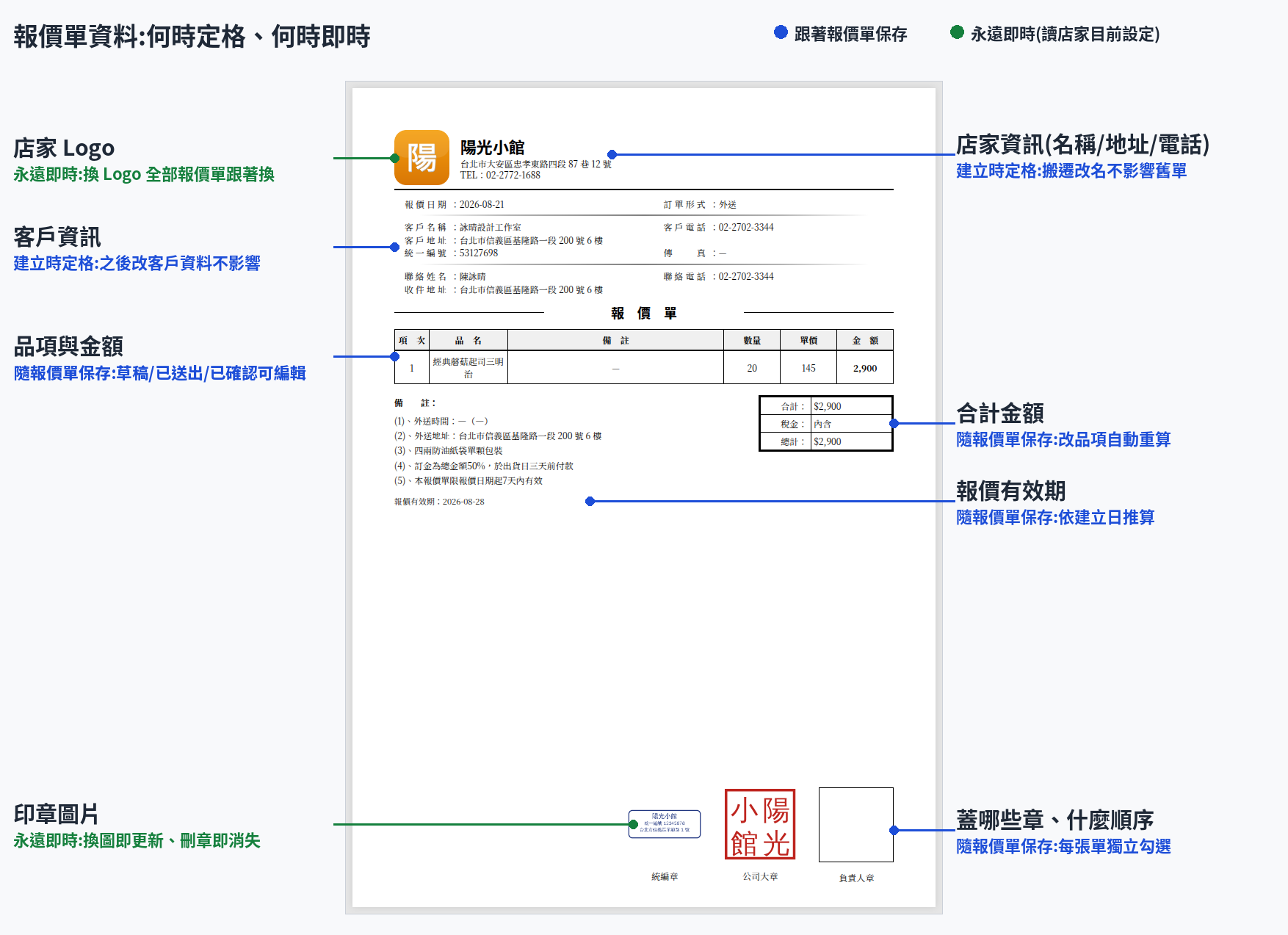
When a quotation is created, the following data is frozen into that quotation — later edits to the customer or store profile will not change quotations that already exist:
- Customer info: customer name, phone, address, tax ID (this also applies when picked from an existing customer; it is fixed once created).
- Contact person / contact phone: part of the order info, entered per quotation and never written back to the customer record.
- Store info: store name, store phone, address, tax ID.
The following can still be edited while the quotation is Draft, Handed over or Confirmed, and is recalculated on change:
- Items and unit prices (subtotal, tax, and total are recalculated), discount.
- Valid days (Valid until is recalculated from the creation date), delivery time, remarks, tax included or not.
- The seal selection and order (which seals, in what order — saved with this quotation).
The following are always live (each PDF render reads the store's current settings):
- Store logo: change the logo in Store Management and the PDFs of all existing quotations show the new one.
- Seal images: the quotation remembers which seals in what order; the image content always comes from the store's current seal. Replace a seal's image and every quotation that includes it shows the new one; delete a seal and its box simply disappears from quotations that referenced it.
If the store moves or is renamed, old quotations keep the info from when they were created — create a new quotation to quote with the updated details.