
Recurring expenses
Set up the costs you pay every month or every other month — rent, utilities, gas, internet — so the system records them automatically on the due date, or reminds you to record them, instead of you forgetting.
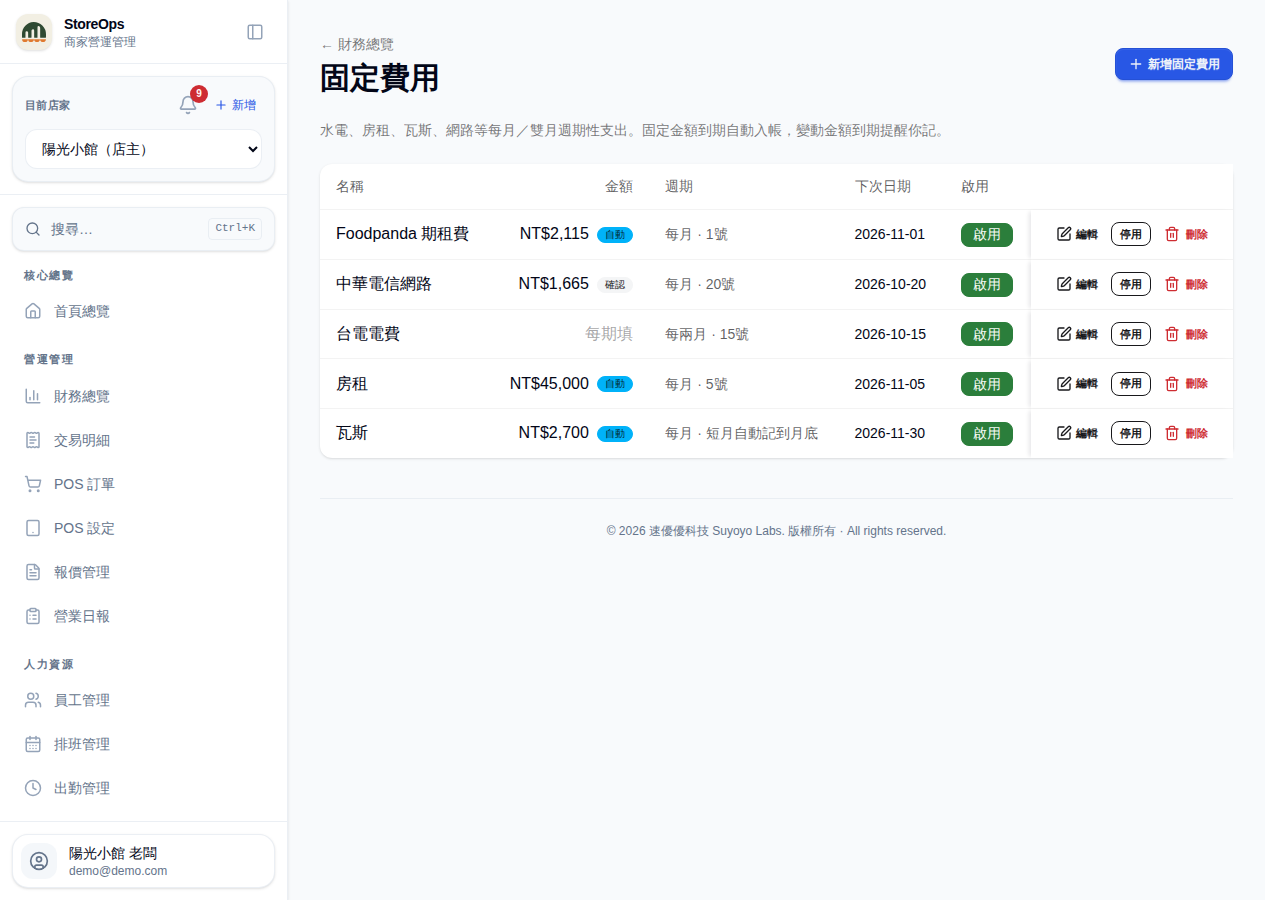
Open the recurring expenses list
- Go to Finance Overview, open the "⋮" more menu at the top right, then Recurring expenses.
- Each row shows Name, Amount, Frequency, Next date and whether it is Active.
- The small badge in the amount column tells you how it is recorded: Auto (posts by itself on the due date), Confirm (has a default amount but waits for you) or Variable (amount differs each period, you enter it when due).
- The frequency column shows how often plus the bill day, e.g. "Monthly · Day 5". Picking day 29–31 shows "Short months clamp to last day".
- Inactive items show
—as their next date.
With nothing set up yet, the page shows a short prompt and an Add recurring expense button.
Add a recurring expense
- Click Add recurring expense at the top right.
- Enter a Name (required, e.g. "Shop rent" or "Electricity").
- Pick a Category (rent, utilities, platform fees, …) and the Payment method you actually pay with.
- Enter the Amount: if it's the same every period, fill it in and you can switch on Auto-post on due date. If it varies (electricity, for example), leave it blank — the system will only remind you when it's due.
- Pick the Day of month the bill falls on.
- If needed, expand More details (optional) to change the Frequency (monthly, every 2 months, quarterly, every 6 months, yearly) and the First bill date. When the category is platform fees you can also set Attribute to platform so the cost is charged to a specific delivery platform.
- The box at the bottom of the dialog previews the outcome live: "Next post …" or "Next reminder … (no auto-post)".
- Click Create.
Auto-post cannot be switched on without an amount; the hint below the field says "Set an amount first to enable auto-post". If the First bill date is in the past, the preview box turns amber and tells you how many past entries will be backfilled when you save. Payroll is deliberately missing from the category list — salaries are handled by payroll, not as a recurring expense, so nothing is counted twice.
What happens on the due date
- Items with auto-post on: the system checks every day and fills in any due periods that haven't been recorded, so the entry simply appears in that day's ledger.
- Items without auto-post (including variable amounts): once due, they appear in the Recurring expenses to record reminder card at the top of Finance Overview, showing the name, the period and the due date.
- Click Record on the card, enter the amount and click Confirm — the entry is created and disappears from the card.
- For variable amounts, the last recorded amount is offered as a reference ("Last …").
Closed months are never written to. Auto-post skips any period in a closed month; on the reminder card such a row is tagged Period closed and its Record button is disabled until the month is reopened. On a day that is already closed, staff cannot record the entry — a manager has to handle it.
Edit, deactivate and delete
- Each row has Edit, Inactive / Active and Delete on the right.
- Edit reopens the same form; click Save when done.
- Inactive asks for confirmation first: once inactive it no longer posts or reminds, and entries already recorded are untouched. Click Active to switch it back on.
- Delete removes the recurring item itself. Entries already in the ledger are kept and become ordinary expense entries.
Adding, editing, deactivating and deleting recurring expenses all require Manager permission. Staff can see the list, but the buttons are disabled. Note: if you delete an item and later create another one with the same name, the system treats it as brand new and backfills past periods again from its first bill date, which can produce duplicates. Deactivating is usually the safer choice.
What happens if you delete one period's entry
- To cancel a single period (say this month's rent wasn't actually paid), just delete that entry in the ledger.
- The system remembers that you removed that period on purpose, so it won't be recreated the next day and it won't reappear on the reminder card.
- Other periods are unaffected; the next one posts or reminds as usual.
This is what stops deleted entries from coming back to life. The flip side: if you deleted it by mistake, that period will not return on its own or via the reminder card — add the expense manually in the ledger instead.