
Quality Checks
Run your daily quality checks off a fixed checklist: mark each item pass or fail, save the record for the day, and page back through past months whenever you need it.
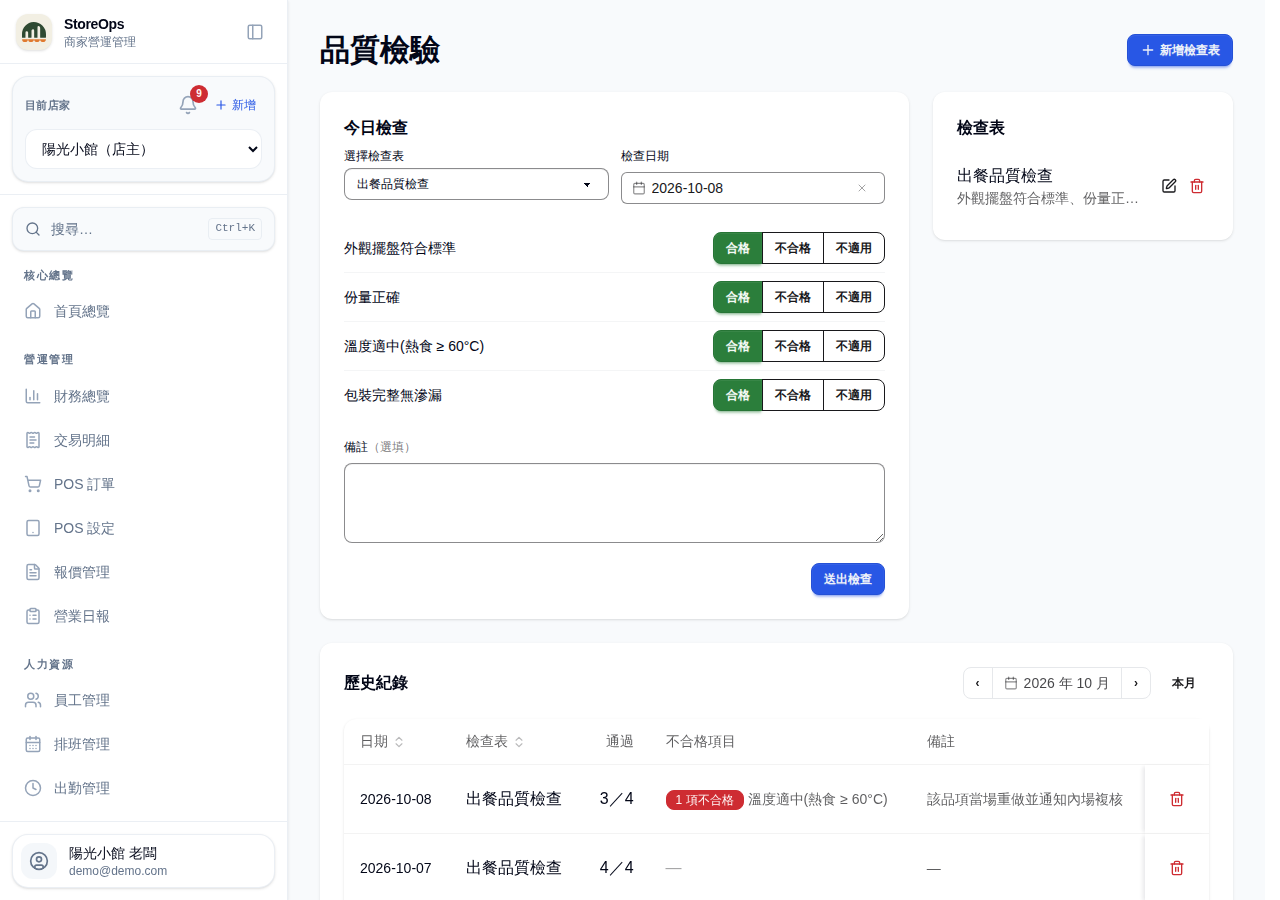
Submit today's check
- Open Quality Checks from the left menu — Today's Check is the first section.
- Pick a checklist under Select checklist. Check date defaults to today; change it if you're backfilling an earlier day.
- Mark each item Pass, Fail, or N/A. Everything starts as Pass, so you only touch the items with a problem.
- Use Note below the list to explain anything that needs it — why an item failed, what was done about it.
- Click Submit check. You'll see Check record submitted when it's saved.
Staff can submit checks; no manager permission needed. If no checklist exists yet you'll see No checklist yet. Ask a manager to create one. — ask your manager to add one first. You can submit more than one record per day (morning and evening shift, for example). After submitting, the note clears and the date resets to today so you can go straight into the next one.
Create and maintain checklists
- Click Add checklist at the top right. Your checklists are listed in the Checklists section on the right (on phones, below today's check).
- Enter a Checklist name, for example "Daily product quality check".
- Under Check items, type one item per line — dough proofing, even browning, consistent filling weight, and so on.
- Leave Active (available for checks) on so the checklist shows up in the dropdown above. Turn it off for seasonal or paused checklists; they'll be tagged Inactive.
- Click Create. Later, use Edit on the row to rename it or change items, or Delete to remove the whole checklist.
Adding, editing, and deleting checklists all require Manager permission — staff don't see this section at all. Deleting a checklist warns that existing records are kept — past checks don't disappear with it.
Review history
- The History section at the bottom lists every check, one month at a time.
- Use the previous / next arrows at the top right, click the month to jump directly, or hit Today to come back to the current month.
- Each row shows Date, Checklist, Passed (e.g. 8/10), Failed items, and Note. Failures get a red badge plus the names of the items that failed.
- To remove a record submitted by mistake, click the delete icon on that row and confirm.
With nothing recorded yet you'll see No check records this month. Deleting a check record requires Manager permission.