
Daily report
A single-page view of one day of trading: revenue, expense and net for that day, plus who was scheduled and who actually clocked in.
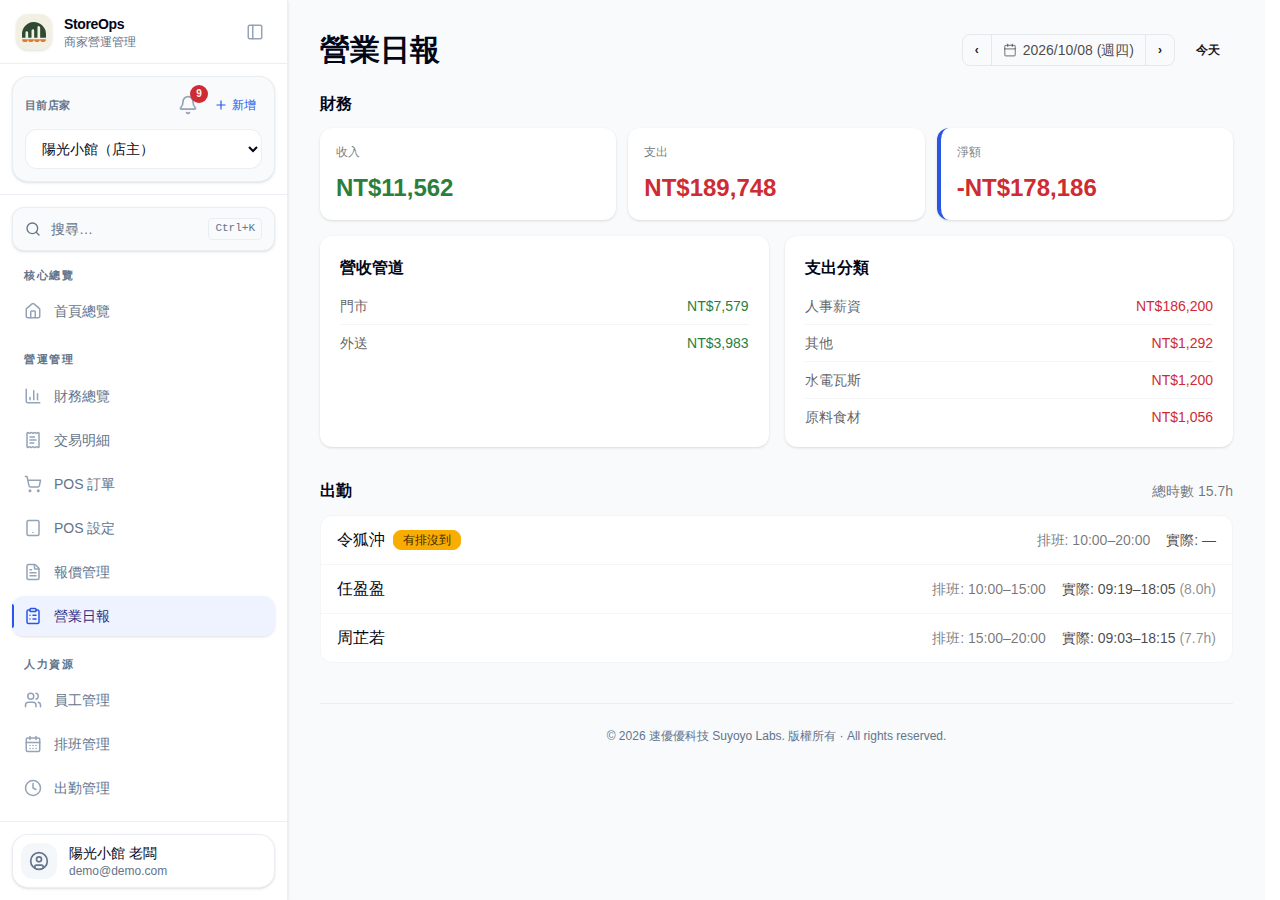
Open and switch days
- In the sidebar under Operations, open Daily Report. It opens on today.
- The date and weekday are shown next to the page title (for example
2026/07/29 (Wed)). Use the Previous day / Next day arrows to move around, or click the date to pick one. - Click Today to jump back to today.
If a day has no entries and no attendance at all, you'll see "No sales or attendance recorded today".
Read the finance summary
- The three cards in the Finance section show that day's Revenue, Expense and Net (a negative net turns red).
- Revenue by channel on the left splits income into Storefront, Delivery and Other, listing only channels with an amount that day.
- Expense by category on the right lists each expense category for the day, largest first.
- The badge next to the section heading shows the day's status: Day closed, Closed (the month is closed) or Day off.
With no income or expense on that day, the finance section shows "No finance records today". Staff cannot see individual salary amounts, but salary expense is still included in the expense total and in the payroll category subtotal, so the figures are never understated because of permissions.
Read the attendance and schedule comparison
- The Attendance section shows the day's Total hours at the top right.
- Each row is one employee: the name on the left, then Scheduled (the shift on the roster) and Actual (clock-in / clock-out times and hours worked). Anything missing shows as
—. - Badges next to the name flag exceptions: Scheduled, absent (rostered but never clocked in) and Unscheduled (clocked in without a shift).
Only published shifts are compared; drafts and shifts marked for removal are ignored. With no attendance and no shifts that day, the section shows "No attendance or schedule today".
How it differs from Daily close
- Daily report is for looking: one page covering the day's sales, spending and staffing — handy for a quick check around closing time.
- To edit entries, close the day or mark a day off, go to the Daily close page in Finance (open it by clicking the day in the monthly overview).
- Both pages read the same figures; the close badge on the daily report simply reflects what was done on the daily close page.
The daily report is read-only — nothing here changes your books.