
Audit Log
Shows who changed what, and when — members and invites, finance deletions and closings, settlements, voided POS orders. Use it when you need to trace a change after the fact.
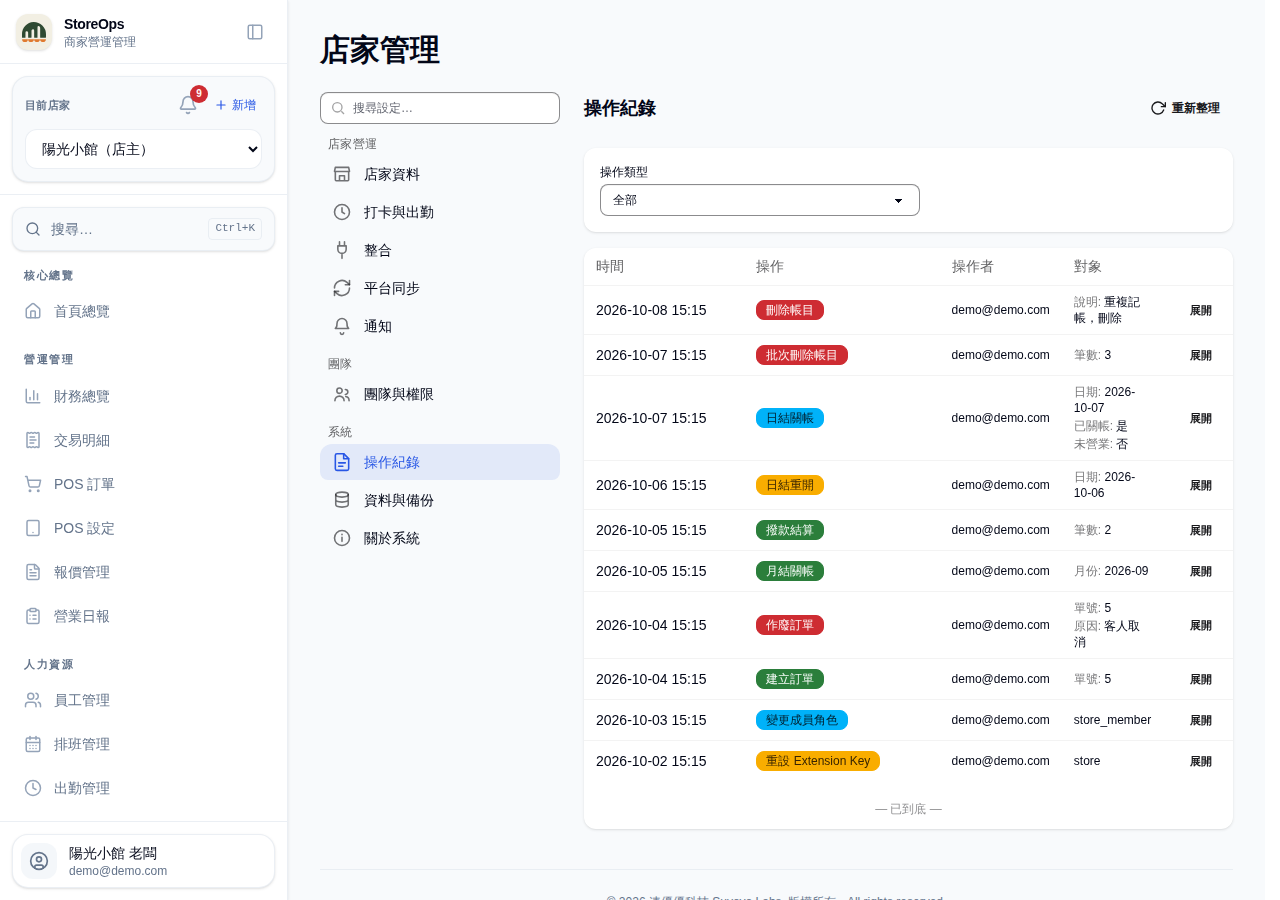
Open the audit log
- Go to Settings in the sidebar and choose Audit Log.
- Records are listed newest first, 50 at a time.
- Refresh (top right) reloads the latest records.
Only managers and owners can view the audit log — staff have no access.
Reading a row
Each row has four columns:
- Time — when the action happened.
- Action — what was done, e.g. Entry deleted, Day closed, Member role changed.
- Actor — the login email of the person who did it.
- Target — what this row actually touched, spelled out (e.g. Date: 2026-08-25, Old role: staff New role: manager). When the target has a page of its own the whole cell is a link straight to it — that day's daily close, that month's ledger, and so on.
Rows with extra information show an Expand button on the right. It reveals Details, a Snapshot of the record as it was before the change, and a last line with the full record id you can copy if you need us to look something up. Collapse hides it again.
Filtering and paging
- The Action dropdown at the top narrows the list to a single action type; the number in brackets is how many records of that type exist. Choose All to go back to the full list.
- Scroll to the bottom and click Load more for the next batch.
- When everything is loaded you'll see "— End of list —". If there's nothing at all, the list shows "No audit records yet".
What gets recorded
- Members & invites: member role changed, member removed, invite cancelled, Extension Key regenerated.
- Finance: entry created/updated/deleted (updates record which field went from what to what), entries bulk-deleted, import batch reverted, day closed/reopened, marked or cleared non-operating, month closed/close removed, settlement confirmed/reverted, recurring expense created/updated/deleted.
- POS: order created, order voided.
- Blocked attempts: changes rejected for insufficient permission or a closed month are recorded too, with the reason — this is where to look when something "did nothing" (some of these are only visible to the platform admin).
Everyday adds and edits outside money and access (products, knowledge base, …) are not logged here. Audit records are read-only: nobody can edit or delete them, and they are never purged automatically. To protect your colleagues' privacy, the actor's IP address and device details are not shown in the store audit log.