
POS Settings
Configure POS tablet behavior, void permissions, and device pairing. This is the setup page behind the POS ordering screen and POS Orders.
Every setting here requires Manager permission. Staff can open the page read-only — they see the settings but can't change them.
 12
12Pair a tablet device (bring POS online)
- Scroll to Tablet device pairing; the badge shows Paired or Not paired.
- Click Generate tablet link (shown as Regenerate tablet link once a tablet has been paired).
- When the link appears, click Copy (or scan the QR code with the tablet) and open it in the tablet browser — that tablet becomes a POS register device.
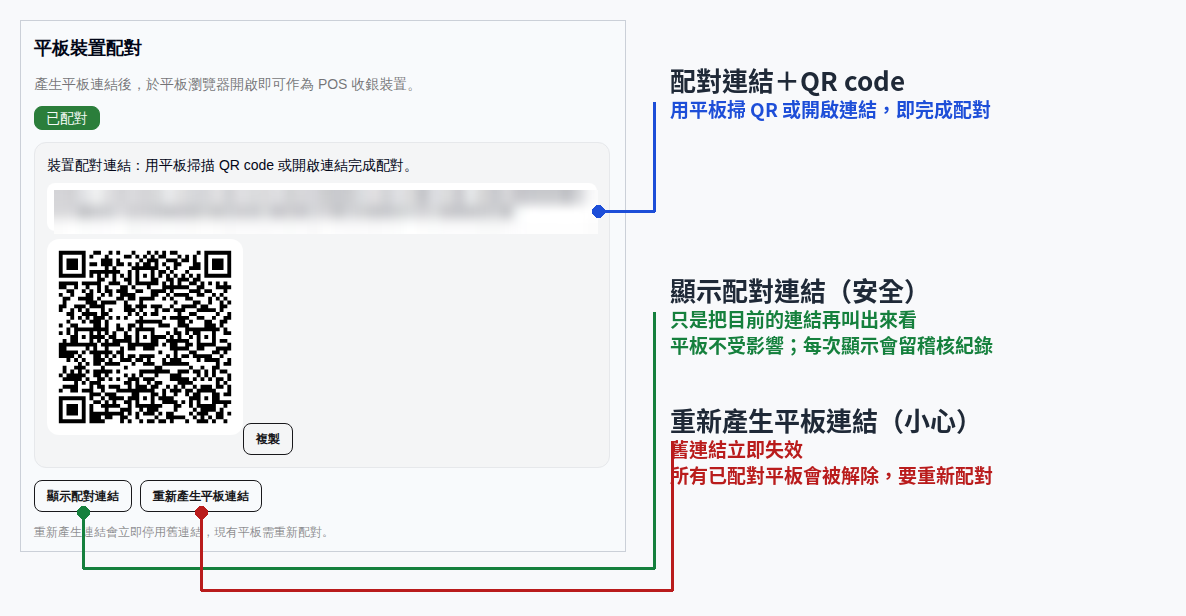
Forgot the link? Click Show pairing link to bring up the current link and QR code again — existing tablets stay paired (each reveal is written to the audit log). Regenerate tablet link immediately invalidates the old link and unpairs all existing tablets — they must be re-opened with the new link. A tablet showing "Device unpaired" means the link was regenerated.
One picture for the difference between the two buttons — use the left one to see the link again; the right one kicks every tablet off (labels in Traditional Chinese):
Behavior
- Require login to operate: when on, the tablet needs a staff login before taking orders.
- Select operator per order: when on, each order must specify the operating staff before checkout.
- Checkout mode: choose Cash keypad (calculate change) (shows a number pad to compute change on cash) or One-tap complete (completes directly; change calculated manually).
- Void permission: choose Void same day, Require void PIN, or Backoffice only to control whether the tablet can void orders.
- Click Save.
POS digital payment methods
- Toggle on the payment methods that should appear at POS checkout (the list comes from this store's payment methods; cash is always implicit and not listed).
- Click Save.
The options under "Choose payment method" at POS checkout are exactly what you enable here. Once enabled, that method's revenue is recorded by POS, and importing its statement reconciles only — it won't record revenue twice. If no payment methods are selectable, add one under Payment methods first.
Void PIN
- Under Void PIN, enter a 6-digit PIN and click Save; the badge shows Set or Not set.
- To remove an existing PIN, tick Clear PIN and click Save.
When Void permission is set to Require void PIN, you must set a PIN first or saving is blocked; the PIN must be 6 digits.