
HR Reports
A monthly workforce overview: scheduled hours, actual hours, and payroll cost side by side, so you can see how much each person was scheduled versus how much they actually worked.
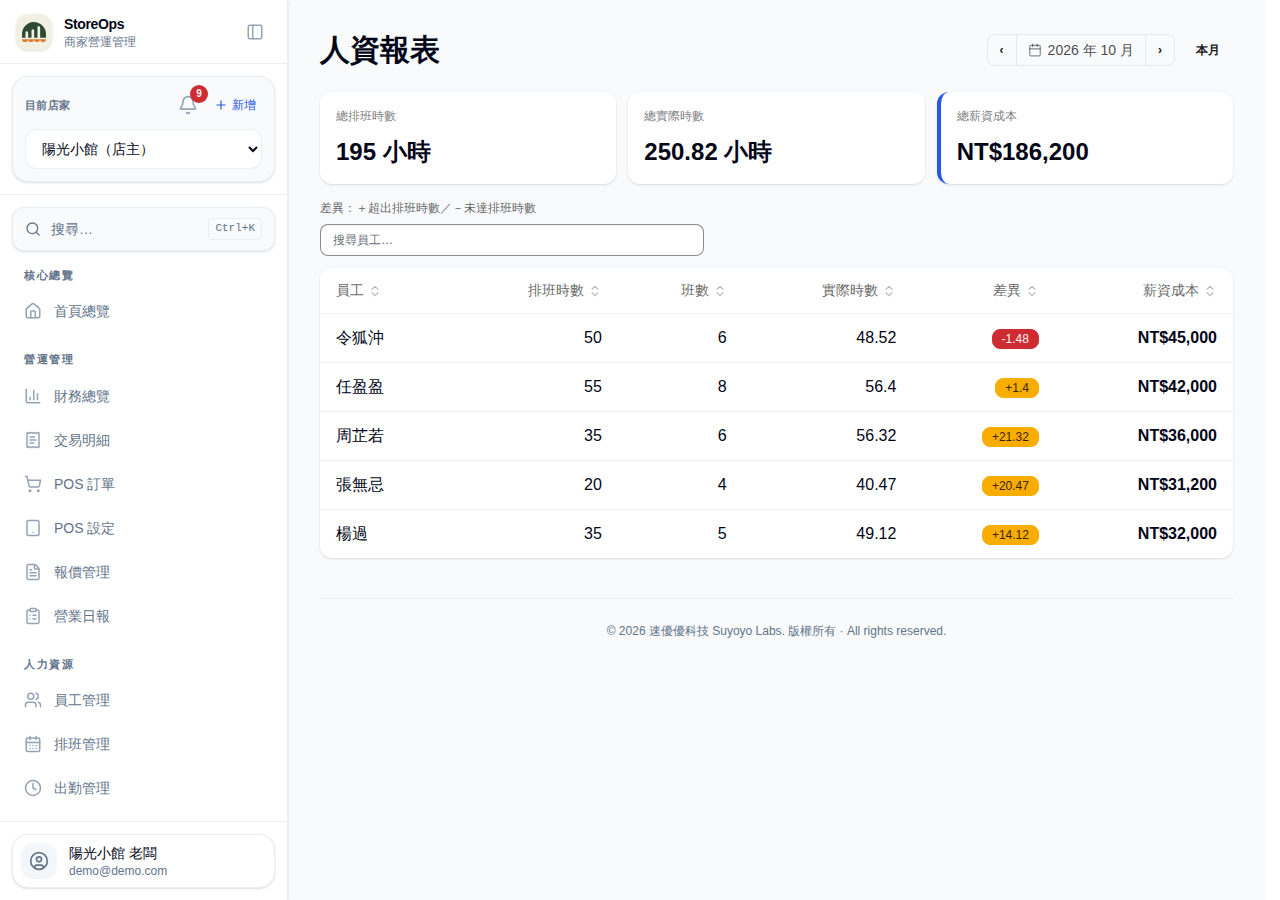
This page needs manager permission — it only appears in the sidebar for managers and owners.
Switch months
- Open HR Reports from the sidebar; it starts on the current month.
- Use ← → to move a month at a time, This month to return to now, or click the month itself to pick one.
- If a month has no schedule, attendance, or payroll data at all, an empty-state message appears instead of the table.
Read the summary cards
The three cards total the whole store for the month:
- Total scheduled hours — hours from published schedules that month.
- Total actual hours — confirmed worked hours from attendance.
- Total payroll cost — payroll that has been finalized or paid for that month.
Scheduled hours count published shifts only; drafts and shifts marked "pending removal" are excluded. Actual hours count confirmed attendance entries only; anything still awaiting confirmation is left out.
Read the employee table
Each row is one employee:
- Employee — name.
- Scheduled hrs / Shifts — how many hours and how many shifts they were scheduled for.
- Actual hrs — confirmed worked hours.
- Diff — actual minus scheduled. A positive (blue) figure means they worked more than scheduled, negative (yellow) means less,
0means it matched. - Payroll cost — that employee's payroll for the month.
- Click a column header to sort by it — handy for finding the biggest discrepancies.
- Use the search box above the table to jump to a name.
Employees whose payroll hasn't been finalized or paid show — under Payroll cost — that's different from an amount of 0. A large Diff usually means the schedule wasn't adjusted to reality, or a clock-in was missed; cross-check day by day in Schedules and Attendance. This page is view-only for now — there's no file export.